
At CPPS, we understand the frustration of submitting a print job only to receive error messages or requests for file corrections. Our goal is to provide you with the best possible printing experience, which is why we conduct thorough file reviews.
To help you navigate the prepress process and avoid potential setbacks, we’ve compiled an expanded list of the most common card game print file concerns and how to address them. Let’s take a look together!
8 Common Game Card Print File Problems
1. Bleed and Safe Area
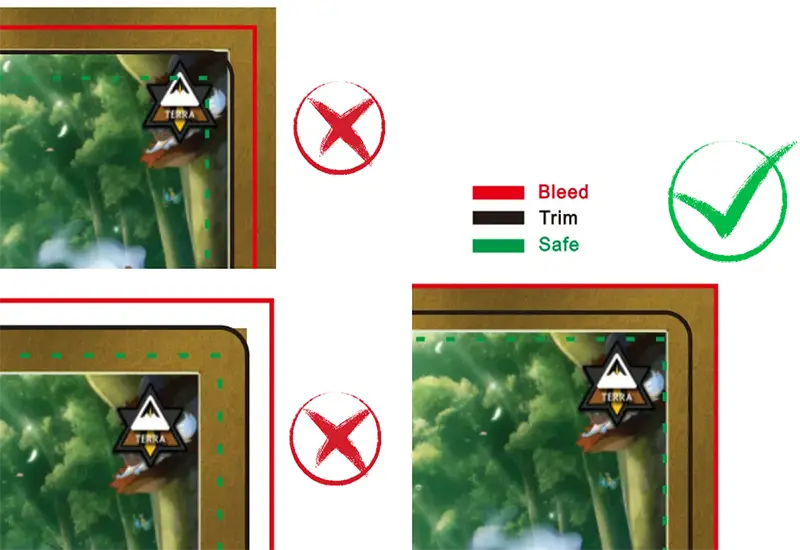
Proper safe and bleed area settings are crucial for clean edge-to-edge printing and to prevent important elements from being cut off. Otherwise, important content may be cut off or white edges may be left due to cutting deviation.
Requirements:
- Bleed area: Extend background elements 3mm beyond the trim edge.
- Safe area: Keep important content (like text, logo, character) at least 3mm away from the trim edge.
Example:
As shown in the image below, the two on the left demonstrate incorrect layouts: the top logo is not within the safety line but rather at the very edge of the cutting line, which can easily result in that part being cut off; the background below does not extend to the bleed line, which may leave white edges after cutting.
The correct approach is on the right: assuming the final size of the game card is 63 x 88 mm, extend the background of the design to 69 x 94 mm and keep important text, logos, graphic elements, etc., within the 57 x 82 mm.
2. Image Resolution
Maintaining high image resolution is crucial for ensuring clear and sharp prints. Low-resolution images can lead to pixelation and blurriness, which significantly detract from the overall quality of the printed product.
Guidelines:
Minimum resolution: 300 DPI at 100% scale.
Example:
See the image below, the one on the left is 72 DPI, which is typical for web resolution. However, when printed, this image may appear pixelated and blurry, with significant loss of detail and clarity.
The image on the right is an acceptable 300 DPI. This resolution ensures the image is sharp and clear, preserving fine details. We recommend not using web images directly in your designs; instead, recreate the elements and then generate the images.

3. Color Shifts
Color discrepancies between screen and print are a common issue, particularly when converting from RGB to CMYK color modes. Certain colors are more prone to noticeable shifts:
Blues:
- Common issue: Appearing purple due to excessive Magenta.
- Solution: Maintain Cyan content about 30% higher than Magenta.
- Example: C=90, M=63, Y=0, K=0 for a vibrant blue.
Grays:
- Common issue: Unintended color casts (e.g., bluish, pinkish).
- Solution: Use black (K) as the dominant color in the CMYK build.
- Example: C=0, M=0, Y=0, K=50 for a neutral mid-gray.
Blacks:
- Rich Black (recommended): C=60, M=40, Y=40, K=100.
- Default Black (acceptable but not optimal): C=75, M=68, Y=67, K=90.
- 100% Black (not recommended): C=0, M=0, Y=0, K=100.
To minimize discrepancies, start your design in CMYK mode whenever possible. This way, you can see how the colors will appear when printed from the very beginning.
Additionally, since color discrepancies in printing cannot be 100% completely avoided, if you have very high color accuracy requirements, we recommend purchasing a hard proof before production. This allows you to review and make adjustments before the final print run.
4. File Format and Compatibility
Using the wrong file format or an incompatible version can lead to printing errors or rejected files.
Recommended formats:
- PDF (preferred): Use PDF/X-1a:2001 for best compatibility.
- AI or EPS: Ensure all linked images are embedded.
You should always embed all fonts and images in your files to avoid font substitution or missing images issues. Alternatively, outline all text before submitting. If we do not have the exact font used in your design, it may replace it with a different font, altering the appearance of your design.
Again, it cannot be emphasized enough, please convert all colors to CMYK to ensure they print accurately. Ensure all images are at the proper resolution (at least 300 DPI) to avoid pixelation and blurriness.
5. Small Text
Legibility is crucial in print design. Text that appears clear on screen may become difficult to read when printed, especially at smaller sizes.
Recommendations for text size:
- Body text: Minimum 7-8pt for serif and sans-serif fonts.
- Script or decorative fonts: Minimum 10-12pt.
- Contact information: At least 8pt to ensure readability.
- Disclaimers and fine print: 5-6pt minimum for standard fonts.
Examples:
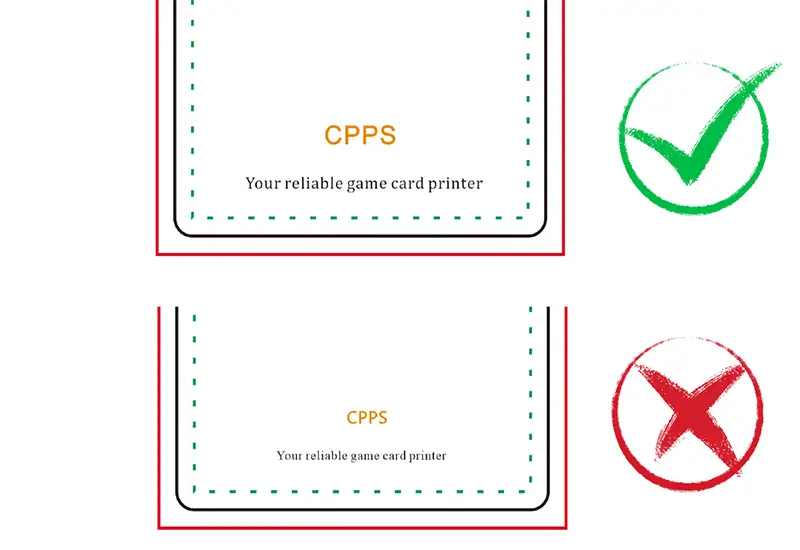
As shown in the picture, for a game card with a size of 63 x 88 mm, 8pt Cambria for the body text and 12pt Arial for the title is acceptable. However, if 6pt Times New Roman for the body text and 8pt Ebrima for the title are used, the printing may be blurred and sticky due to the thin lines.
6. File Masks
File masks are one of the most frequent issues we encounter in specialty finishes. These files play a crucial role in specialty printing processes like foil stamping or spot UV coating. To ensure proper execution, masks must adhere to specific requirements:
Requirements:
- Color Mode: CMYK only.
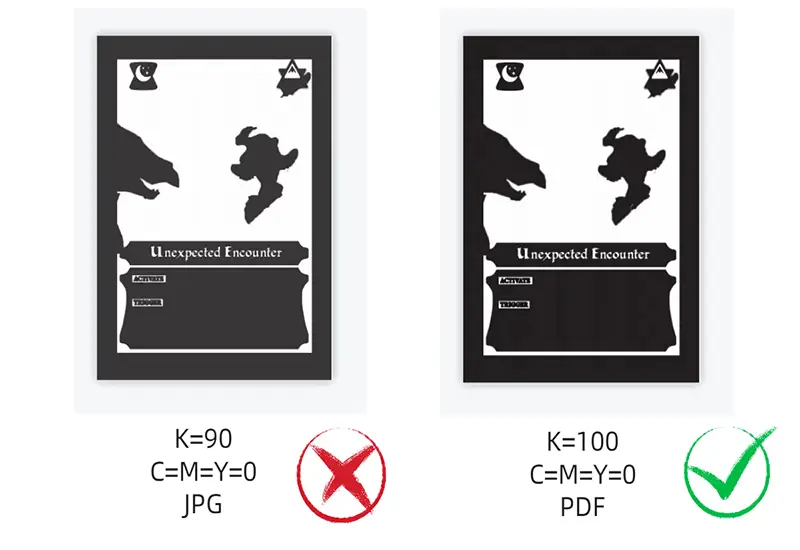
- Color Content: 100% black (K=100, C=M=Y=0).
- File Format: Vector only (e.g., AI, EPS, PDF).
The press uses the pure black value to determine where to apply foil or spot UV. If your mask contains any other color values or is not 100% black, the system won’t interpret it correctly, leading to misaligned or incomplete special effects.
Example:
The left image shows an incorrect mask: A raster image file (like JPG or PNG) or a file with gray (K<100) areas. The correct mask should be a vector file with solid black (K=100) areas where foil should be applied.
7. Overprint Settings
Incorrect overprint settings can cause unintended color mixing or elements to disappear in print.
Guidelines:
- Black text should typically be set to overprint.
- Colored elements should usually have overprint turned off.
Use the overprint preview feature in your design software to check how the overprint settings will affect your final print. This can help you catch potential issues before sending the file to print.
Avoid using overprint on light-colored elements, as it can cause unexpected color shifts when printed over darker backgrounds. For example, white text with overprint enabled on a dark background, and the text will disappear.
Also, be cautious when using spot colors with overprint settings. Ensure that the overprint behavior is what you intend, as spot colors can interact differently compared to CMYK colors.
8. Plastic Transparencies
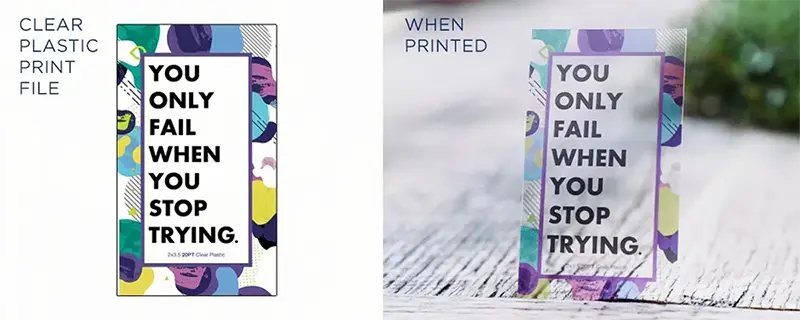
If you use clear or frosted white plastic cards, as opposed to paper, you face unique challenges:
- Text: Use larger, bolder, and brighter fonts than usual.
- Screened effects: Apply darker than intended to compensate for transparency.
- White ink file: Prepare white ink files as a base to make CMYK printing colors more vivid.
Example:
- Standard design: 10pt black text on white paper
- Transparent stock design: 14pt bold white text on a dark background element.
Game Card Print File Problem Conclusion
Above are 8 file issues we often encounter when working with customers to print game cards. Remember, our team is here to help you navigate these technical requirements. If you’re unsure about any aspect of your design or encounter difficulties correcting errors, our experienced design team is available to assist.
We offer file review services, mockups for transparent stock designs, and personalized support to ensure your print job meets the highest standards of quality. Don’t hesitate to reach out via email or live chat if you have any questions or concerns. At CPPS, we may not be your neighborhood printer, but we strive to provide the same level of personalized service and attention to detail.


